
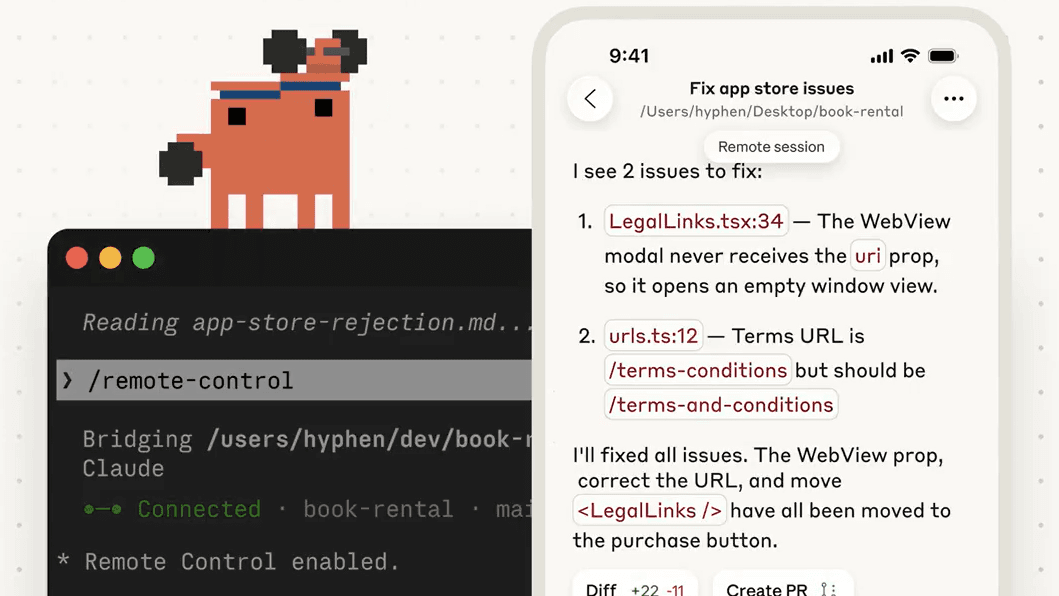
Anthropic just dropped a feature I've been wanting since I started using Claude Code: Remote Control. The idea is simple. Start a coding task at your desk, then keep working on it from your phone while you're on the couch. Or from a browser on a different computer. Or from a tablet at a coffee shop.
I've been using it for a few days now, and here's the practical guide on how to set it up and actually use it.
What is Remote Control?
Remote Control connects claude.ai/code or the Claude mobile app to a Claude Code session running on your machine. When you start a Remote Control session, Claude keeps running locally—your filesystem, MCP servers, tools, and project settings all stay available. The phone or browser is just a window into that local session.
This is different from “Claude Code on the web,” which runs on Anthropic's cloud infrastructure. With Remote Control, everything executes on your machine. You're just controlling it remotely.
Why You Actually Want This
Here are the real use cases I've found useful:
- Long-running tasks: Kick off a big refactor, go make lunch, check progress from your phone
- Thinking breaks: Step away from the desk when you're stuck, keep the session alive to pick up later
- Multi-location work: Start at the office, continue from home without context switching
- Quick checks: Your laptop is running a task upstairs, you want to see if it's done from downstairs
The conversation stays in sync across all connected devices. You can send messages from your terminal, browser, and phone interchangeably.
Requirements
Before you start, make sure you have:
- A Pro or Max subscription: This is a subscription feature. API keys won't work.
- Claude Code updated: You need version 2.1.52 or later. Run your package manager's update command if needed.
- Logged in via claude.ai: Run
claudeand use/loginto sign in through claude.ai if you haven't already. - Workspace trust accepted: Run
claudein your project directory at least once to accept the workspace trust dialog.
Note: Remote Control is currently available as a research preview. It's not available on Team or Enterprise plans yet.
Setup Guide
Option 1: Start a New Remote Session
Navigate to your project directory and run:
claude remote-controlThe process stays running in your terminal, waiting for remote connections. It displays a session URL you can use to connect from another device. Press spacebar to show a QR code for quick access from your phone.
Optional flags:
--verbose: Show detailed connection and session logs--sandbox/--no-sandbox: Enable or disable sandboxing for filesystem and network isolation
Option 2: From an Existing Session
If you're already in a Claude Code session and want to continue it remotely:
/remote-controlOr the shorter version:
/rcThis starts a Remote Control session that carries over your current conversation history. You'll see a session URL and QR code.
Pro tip: Use
/renamebefore running/remote-controlto give the session a descriptive name. Makes it way easier to find in the session list across devices.
Connecting From Another Device
Once a Remote Control session is active, you have a few options:
- Open the session URL in any browser to go directly to the session on claude.ai/code. Both
claude remote-controland/remote-controldisplay this URL in the terminal. - Scan the QR code with your phone to open it directly in the Claude app. Press spacebar to toggle the QR code display.
- Open claude.ai/code or the Claude app and find the session by name in the session list. Remote Control sessions show a computer icon with a green status dot when online.
If you don't have the Claude app yet, type /mobile inside Claude Code to display a download QR code for iOS or Android.
Tips and Tricks
Enable Remote Control for All Sessions
If you want Remote Control available every time you start Claude Code, run /config and set “Enable Remote Control for all sessions” to true.
Surviving Network Drops
If your laptop sleeps or your network drops, the session reconnects automatically when your machine comes back online. No need to restart. The session stays alive in the background.
Security
Your local session makes outbound HTTPS requests only. No inbound ports open on your machine. All traffic travels through the Anthropic API over TLS with short-lived credentials.
Limitations to Know About
- One remote session at a time: Each Claude Code instance supports one remote connection. If you run multiple instances, each one gets its own session.
- Terminal must stay open: Remote Control runs as a local process. Close the terminal or stop the
claudeprocess and the session ends. - Extended network outage: If your machine can't reach the network for more than about 10 minutes, the session times out and the process exits.
Remote Control vs Claude Code on the Web
Both use the claude.ai/code interface, but they're different under the hood:
| Feature | Remote Control | Claude Code on Web |
|---|---|---|
| Where it runs | Your machine | Anthropic's cloud |
| Local files | Full access | No access (cloud only) |
| MCP servers | Available | Not available |
| Best for | Continuing local work | Starting fresh, parallel tasks |
Use Remote Control when you're in the middle of local work and want to keep going from another device. Use Claude Code on the web when you want to kick off a task without any local setup or run multiple tasks in parallel.
Getting Started
Open your terminal, navigate to a project, and run claude remote-control. Scan the QR code with your phone. That's it. You're connected.
It's one of those features that sounds like a small convenience until you actually use it. Then you wonder how you worked without it.

Elevated AI Consulting
Sam Irizarry is the founder of Elevated AI Consulting, helping businesses grow through strategic marketing and AI-powered solutions. With 12+ years of experience, Sam specializes in local SEO, web design, AI integration, and marketing strategy.
Learn more about us →